Wait… am I on the right branch?
If you execute Git commands in your terminal, you might have noticed that on most Operating Systems it does not tell you which branch you are on. Although that is not a big issue, as you can retrieve the name of the branch you are currently on, it would be much more convenient if the branch name stays there all the time.
How to do it?
Check this Gist of mine.
Basically, all you have to do is paste this at the end of your .bash_profile or your .bashrc file. Depending on your system, this file should already exist in your home directory. If it does not, simply create it.
This is what you need to paste
# You might want to add this to your .bash_profile and/or .bashrc file in your home directory
parse_git_branch() {
     git branch 2> /dev/null | sed -e '/^[^*]/d' -e 's/* \(.*\)/ (\1)/'
}

export PS1="\[\033[36m\]\u\[\033[m\]@\[\033[32m\]\h:\[\033[33;1m\]\w\[\033[m\]\\[\033[0;95m\]\$(parse_git_branch)\[\033[0m\]$ "
export CLICOLOR=1
export LSCOLORS=ExFxBxDxCxegedabagacad
alias ls='ls -GFh'
This works both on your Linux, as well as on Mac OSX. I tested it on my Ubuntu and my OSX 10.15 Catalina.
After you paste the above code, and after you save the file, close your terminal window or tab, and open a new one for changes to take effect. Or reboot your machine.
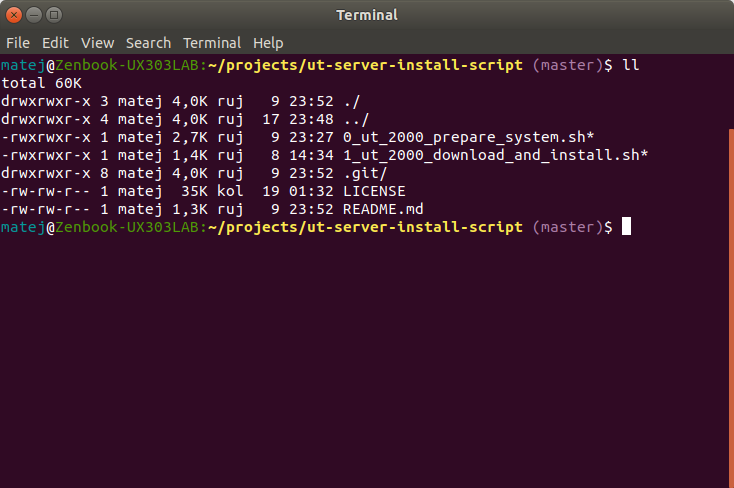
This is how it looks like

What if I want to get the branch name without modifying any of my files?
Check out this Stack Overflow answer, then.
git branchThe command above shows all the local branches of your repository. The branch name with an asterisk (*) to it’s left is your current branch.
git branch | grep \* | cut -d ' ' -f2This retrieves only the name of your current branch.
Although this works just fine, I personally think that having the branch name displayed right away is much more convenient. It’s up to you to decide. 🙂